A2Z Digi Wave Insight
Printer Offline” is a status—not the root cause
August 24, 2026
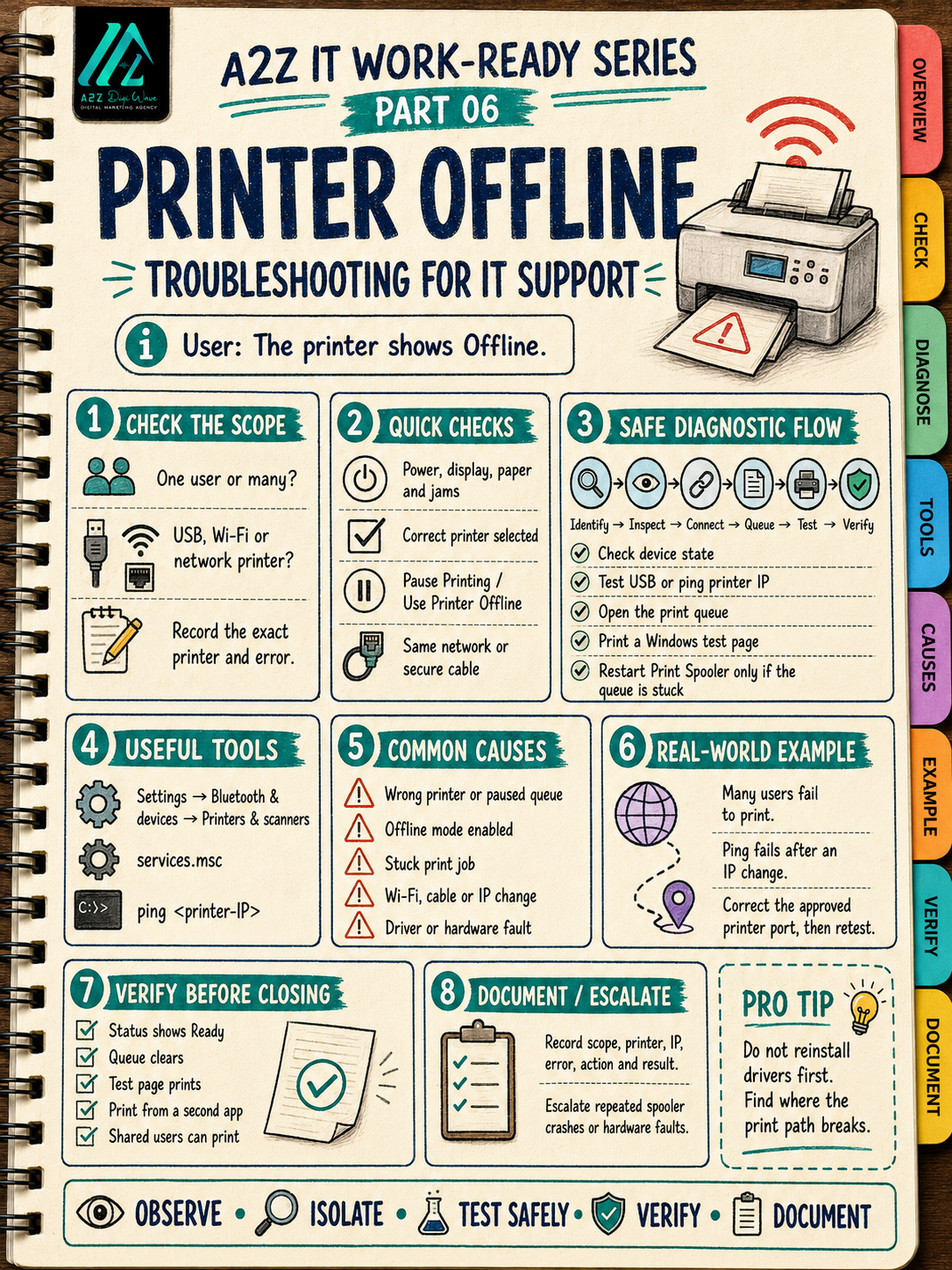
“Printer Offline” is a status—not the root cause.
In a real IT support job, reinstalling the driver immediately can waste time and create additional problems. First identify where the printing path breaks.
Use this safe workflow:
• Confirm whether one user or multiple users are affected
• Identify whether it is a USB, Wi-Fi or network printer
• Check power, display warnings, paper and physical jams
• Confirm the correct printer is selected
• Inspect the queue for paused or stuck jobs
• Test the USB connection or ping the printer’s IP address
• Print a Windows test page
• Restart the Print Spooler only when the queue is stuck
• Reinstall or update the official driver only when justified
• Verify the queue clears and printing works from another application
Pro Tip: Don’t start by changing everything. Find whether the failure is at the device, connection, queue, driver or application layer.
At A2Z Digi Wave, we believe professional IT support follows a simple standard: observe, isolate, test safely, verify and document.
Save Part 06, share it with someone starting an IT career, and follow the A2Z IT Work-Ready Series.
#ITSupport #PrinterTroubleshooting #HelpDesk #WindowsSupport #TechCareers #A2ZDigiWave
Official sources:
• Microsoft — [Troubleshooting offline printer problems in Windows](https://support.microsoft.com/en-us/windows/hardware/printer/troubleshooting-offline-printer-problems-in-windows) — No publication/update date displayed
• Microsoft — [Fix printer connection and printing problems in Windows](https://support.microsoft.com/en-us/windows/hardware/printer/fix-printer-connection-and-printing-problems-in-windows) — No publication/update date displayed
• Microsoft Learn — [Troubleshoot Print Spooler service not running](https://learn.microsoft.com/en-us/troubleshoot/windows-server/printing/print-spooler-service-not-running) — Updated February 12, 2026